 | Monthly Newsletter News Bytes |
| AUGUST 2026 | Issue #6 | Focus: Production Management | 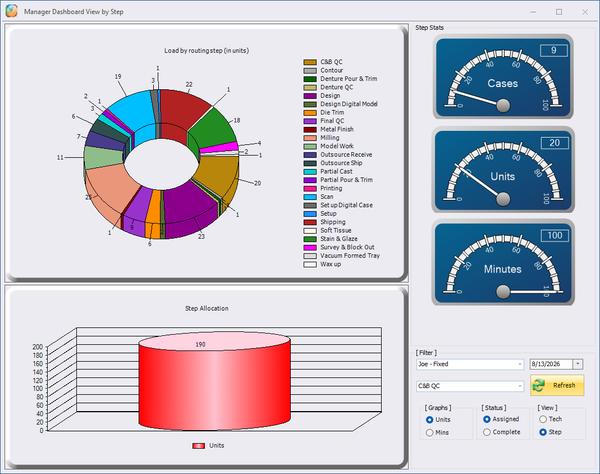 | Built for the Production Manager Last month we showed you tools for your techs to process cases through production. This month, we’re focusing on Production Managers. Production Managers are responsible for the technicians who make up each work center defined by a laboratory. They oversee the workflow in that area or department. They can reroute cases, re-assign cases to other technicians, put cases on and take cases off of production hold, designate cases as internal remakes and perform exception handling. They are responsible for monitoring department capacity, scheduling and other aspects of case handling. | | | This Month’s Focus: Your Production Managers Evolution has a full set of tools built specifically for Production Managers. Before these tools can work effectively, the production manager team(s) must be set up by having the technicians linked to their managers, in the Managers form under the Maintenance menu. By creating these teams, the manager tools become powerful assets that are ‘customized’ for each manager and the specific work they oversee. Setting Up Production Managers |
Is Your Floor Manager Still Running the Day on Paper? EvoMGR puts the manager’s schedule, case list and reassignment tools on a tablet, in order to manage every bench and every case from anywhere in the lab. If you don’t use it, but would like to see what it can do, contact ABS to learn more. EvoMGR Mobile Tablet App |
EvoDASH Isn’t Just for the Front Office EvoDASH gives production managers real-time data on the cases moving through the lab — not just an owner’s view of the business. If your managers haven’t looked at it, the production views are the place to start. Read the EvoDASH launch post |
| Popular Feature Spotlight |
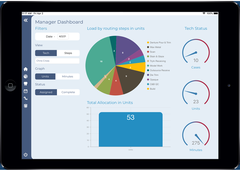 | EvoMGR Mobile App The manager’s tablet app: find any case in production, reassign it to a different technician, put it on hold, bypass a step, or print an updated work ticket — from anywhere in the lab, not back at a desk. Real-time productivity, view clock in/out data, and add notes or photos on a case, all in hand. Learn More |
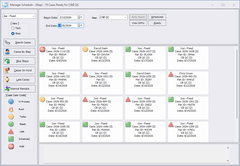 | Manager Schedule — The Manager’s View of the Floor Every case in the lab, on buttons color coded by status — rush, today, ready, late, on hold. Flip the view between by technician and by step, set any date range, then right-click a case to show its schedule, change the tech, release a hold, or print the work ticket. It’s a deep form, and there’s a document that covers every feature and utility on it. The complete Manager Schedule guide |
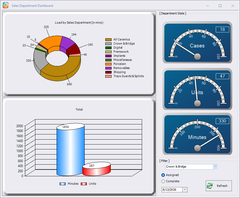 | Manager, Department & Executive Dashboards Three separate dashboards, each with its own job. Manager shows load by routing step or by technician with live Cases, Units and Minutes gauges. Department breaks the day out by department — ceramics, crown & bridge, digital, removables. Executive steps back to the whole lab. All three take any date you choose, and all three are covered in one guide. Dashboard Operations guide |
| This Month: The Manager Report For managers, our recommended report this month is the Manager Report — typically, it’s under Reports > Manager Reports. If you don’t see it, contact ABS Support to get it loaded. There are also several other versions of it — by date range, all steps, with service, with value — that give you more control over what it pulls. Those aren’t loaded by default. Contact ABS Support and we’ll add whichever one fits how you work. Manager Report user guide |
| | 1. | Fastest Support: Contact support@atlantabasedsystems.com or call 1-800-476-2097 Ext. 1. Please do not send support requests to individual ABS employee emails. To ensure a timely response, please use “support” email or call. |
| 2. | Start Here: Tie Your Technicians to Their Managers
Under Maintenance there’s a form where you connect each production manager to the technicians they oversee. Nothing on the Management menu that filters by manager will work until you do — and this is the step labs quietly outgrow. One person sets it up, it works fine, and eighteen months later half those technicians have moved on, nobody updated the form, and the manager’s screens look empty. If your managers say “it doesn’t show my people,” this is almost always why.
Managers: Setup and Maintenance guide — or reach out to Support and we’ll walk through it with you. |
| 3. | Your Dashboards Aren’t Just for Today — Change the Date
Most managers open a dashboard, look at what’s in the lab right now, and close it. The date field is the part that gets missed. Set it back and you can see how a past day actually ran. Set it forward and you’ll see what’s already assigned and scheduled for a day that hasn’t happened yet, which is how you catch an overloaded department before it’s overloaded. |
| 4. | Management Tools in EvoData
If you manage production, this is your day. Here’s what’s behind each item and when to reach for it.Management Menu | • | Manager, Executive & Department Dashboards – three separate buttons at the top of the menu. Manager shows load by routing step or by technician, with live Cases, Units and Minutes gauges. Executive steps back to the whole lab. Department breaks the day out by department. All three in one guide. | | • | Tech Evaluation – grade the completed steps on a case against the technician who did them. | | • | Mgr Schedule – the main working screen: every case in the lab as a status color-coded button, by tech or by step, with right-click actions on any case. Full guide here. | | • | Int Remake – put a completed case back into production and move a case back to a previously completed step when rework is required. | | • | ReOrder Schedule – resequence the steps on a case. (Typically your scheduling staff.) | | • | Tech Productivity – what each technician actually produced, in units and minutes, and forecast loads for future dates. Worth knowing, this one only gives you real answers if you’re running both step processing and the time clock. | | • | Bypass\Credit – bypass steps and give the technician credit on those steps at the same time. User doc. | | • | Order Locks – clear stuck, locked cases so they can be accessed again. User doc. |
Cases Menu | • | Two forms here are worth a manager’s time, because both can narrow the data down to one specific manager. Look at Rush/Late Case Tracking and Hold Case Tracking, and pick your manager at the top left. |
|
| 5. | Stuck on something? Hit F1: Pressing F1 anywhere in Evolution opens the Evolution User Online Documentation for that screen. It’s the fastest way to get an answer without leaving what you’re working on. |
| | | What’s the difference between the dashboards in EvoDATA and EvoDASH? They’re two different tools for two different jobs. The Management dashboards live inside EvoDATA, alongside your cases and schedule, and they’re date-driven: pick any date and see that day’s load — today, last Tuesday, or a week out to see what’s already assigned and scheduled. EvoDASH is a separate application built to put real-time metrics and KPIs in front of you at a glance, with nothing to run or dig through. Owners lean on EvoDASH; managers live in EvoDATA; plenty of labs use both. See EvoDASH |
How do I get my managers set up for EvoMGR? Start inside Evolution, not on the tablet. The EvoMGR app reads the same manager-to-technician relationships you set up in EvoDATA — so if those aren’t configured, the app won’t show your manager anything useful. Set that up first, then reach out and we’ll handle licensing and the device install. Managers: Setup and Maintenance guide |
Quick Fact: You can reassign a tech without leaving the case list In Manager Schedule, double-click any case to Change Tech, show its schedule, release a case from hold, or print the work ticket. It’s the fastest way to move work off a backed-up bench — and outside of case entry, Manager Schedule is the primary place to put a case on hold or take it off. |
| Quick Resources: ABS Home | Sales | YouTube | Support | Proudly serving dental labs for 49 years — since 1977. You’re receiving this because you are subscribed to the ABS Monthly Newsletter.
View this email in your browser | Newsletter Archive Atlanta Based Systems Inc. | 110 Clarkesville Plaza | Clarkesville, GA 30523 Unsubscribe | Privacy Policy © 2026 Atlanta Based Systems, Inc. All rights reserved. |
|